 Support Center
How to setup MFA Authenticator
🔐 What is MFA and Why Do I Need It?
MFA (Multi-Factor Authentication) adds an extra layer of security to protect sensitive taxpayer data. The IRS requires all tax software to use MFA to help prevent unauthorized access.
Since the install version needs to work offline (without internet), we use an Authenticator app on your phone that generates a new 6-digit code every 30 seconds.
📋 What You Will Need
- A smartphone (iPhone or Android)
- Google Authenticator app (free) - Download it now:
- Your computer with SureFire Tax Software installed
Note: Microsoft Authenticator also works if you prefer it.
📱 Step-by-Step Setup Guide
Step 1: Download the Authenticator App
If you have not already, download Google Authenticator on your phone:
- Android: Open the Play Store, search for "Google Authenticator", and tap Install
- iPhone: Open the App Store, search for "Google Authenticator", and tap Get
Step 2: Log Into SureFire Tax Software
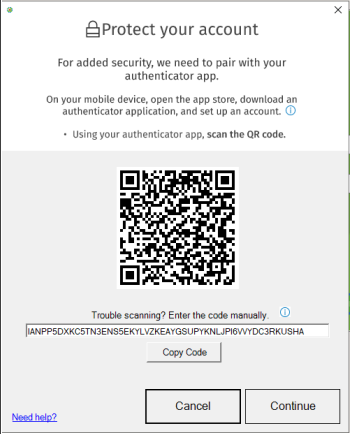
Open the program and log in with your username and password. You will see a "Protect Your Account" screen with a QR code:
Step 3: Open Google Authenticator and Add an Account
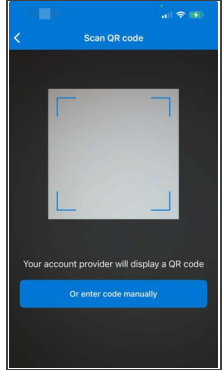
- Open the Google Authenticator app on your phone
- Tap the + button (usually in the bottom right corner)
- Select "Scan a QR code"
Step 4: Scan the QR Code
- Point your phone camera at the QR code on your computer screen
- The app will automatically recognize it and add a new entry
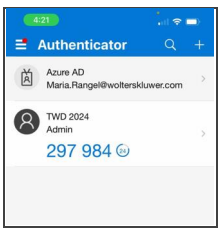
- You will see a new code appear labeled something like "TWD 2024: Admin"
Step 5: Click Continue in the Software
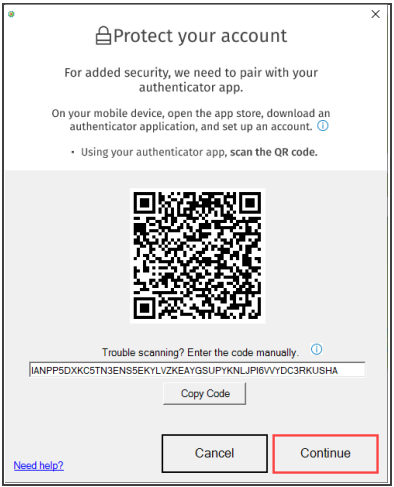
After scanning the QR code, click the Continue button in SureFire Tax Software:
Step 6: Enter the 6-Digit Code
- Look at your phone and find the current 6-digit code
- Type this code into the software
- Check the "Remember Me" box if you do not want to enter a code for the next 180 days
- Click Verify

⚠️ Troubleshooting
"Invalid Code" Error
If your code is not working, check these things:
- Time sync issue: Make sure the time on your phone matches the time on your computer exactly. Even being 1-2 minutes off can cause codes to fail.
- Code expired: The code changes every 30 seconds. Make sure you are entering the current code shown in the app.
- Wrong account: If you have multiple codes in your authenticator, make sure you are using the one for SureFire/TWD.
Lost Your Phone or Authenticator Code?
If you need to reset your MFA, see our guide: How to Reset Admin/Users Authenticator
📞 Still Need Help?
If you are having trouble setting up MFA, contact our support team:
Phone: 1-800-516-9442
Tags: install,setup,getting-started