 Support Center
Reset Password for Web Version Admin / Created Preparer User
📚 What This Guide Covers
This guide explains how to reset passwords in the Sure-Fire Web Version Tax Software for:
- ADMIN user password (web version)
- Any Username you created for yourself or another employee/preparer
🔐 Reset Password for the Web Version ADMIN User
⚠️ Before You Begin
Make sure you can access the email address associated with your Client ID so you can retrieve the temporary password.
Step 1: Open the Web Version and select the active Tax Year
Use this when you need to access the latest tax year in the Web Version.
- First, you want to try and access the latest tax year by going to http://surefiretaxsoftware.net and clicking the current active Tax Year
Step 2: Click Forgot Password
Use this when you need to start the password reset process.
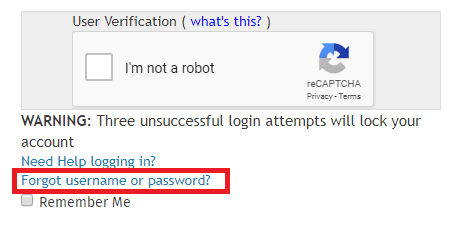
- Next, you will simply click on the [Forgot Password]
Step 3: Enter your Client ID and username: admin
Use this when you need to identify the account you are resetting.
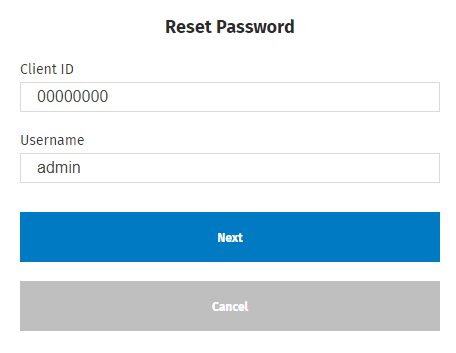
- Next, you will enter your Client ID and the username: admin
Step 4: Copy the temporary password from your email
Use this when you need to retrieve the temporary password to sign in.
- You will receive an email sent to you with a new temporary password to use.
You must copy the password BETWEEN the quotes "" and do NOT copy the quotes "" themselves apart of the password!

Step 5: Create your new password
Use this when you are ready to replace the temporary password with a new one.
- After you have entered the new temporary password, you will be asked to create a new one.
👤 Reset Password for a Username You Created (Self or Another Employee/Preparer)
⚠️ Before You Begin
You must be able to log in under the ADMIN username to manage other users.
Step 1: Log in as ADMIN and open Administrator settings
Use this when you need to access user management.
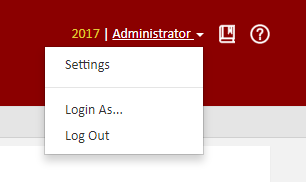
- Simply log in under the ADMIN username and then click Administrator located on top right corner of the page, then go under Settings
Step 2: Manage Users and reset the selected username
Use this when you need to reset a password for a specific user.
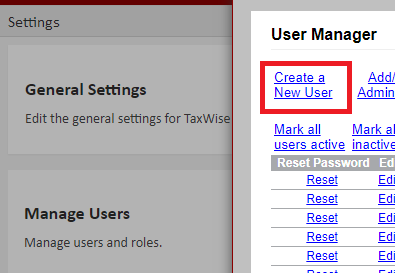
- Next, simply click on Manage Users and you will get a popup to Create a New User, or you can click RESET next to the Username you wish to reset the password for. If you need to change the email for their account, simply click EDIT next to their username.
📞 Still Need Help?
If you are having trouble, contact our support team:
Phone: 1-800-516-9442
Tags: web,setup,getting-started