 Support Center
Setting up tax form defaults
📚 What This Guide Covers
This guide shows you how to set up tax form defaults in the SureFire software. This allows you to pre-fill common information and set default pricing for your returns.
- Access - Navigating to the Tax Form Defaults editor
- Price Sheet - Setting default fees for returns
- 8879 Details - Adding EFIN and ERO information to all returns automatically
⚠️ Before You Begin
- You must log in using the Admin username to edit defaults.
- Changes made here will apply to all new returns created under the specified user group.
📊 Step-by-Step Guide
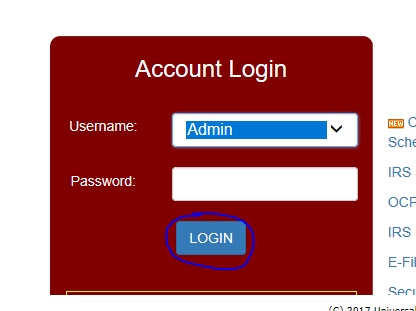
Step 1: Log in as Admin
Sign in with the admin username to access global settings.
Step 2: Access Tax Form Defaults
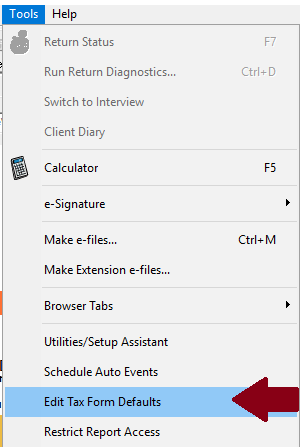
Go to Tools > Edit Tax Form Defaults.
Step 3: Select Tax Form
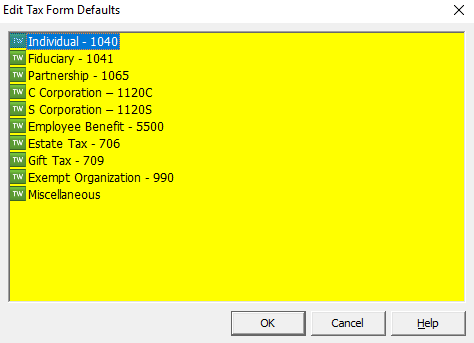
The screen background will turn yellow to indicate you are in the editor. Pick the appropriate tax form and click OK.
Step 4: Confirm Prompt
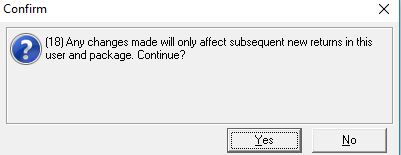
Click OK on the confirmation prompt.
Step 5: Add Form
In the top left of the return, click "Add Form / Display Form List."
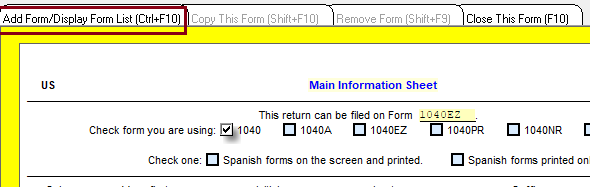
Step 6: Search for Price Sheet
Type "price" in the search box to find the Price Sheet, then double-click it to open.
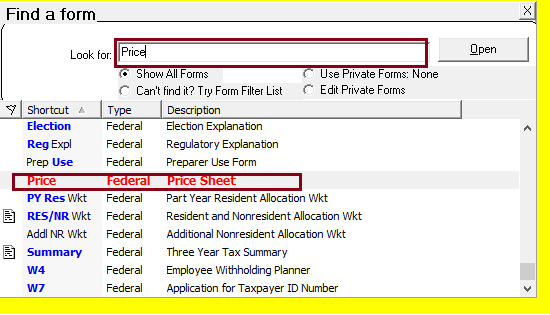
Step 7: Set Default Pricing
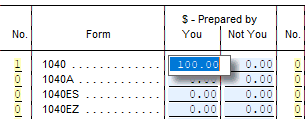
Enter the default fees for each return type (e.g., $100 for 1040). These fees will apply automatically to returns.
💡 Note: Pricing can still be adjusted on a per-return basis if needed for employees or family.
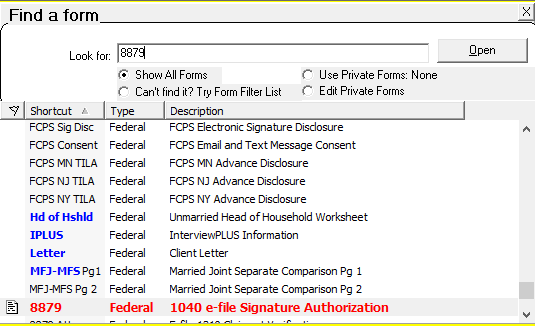
Step 8: Edit Form 8879
Open the "Add Form" list again and select Form 8879.
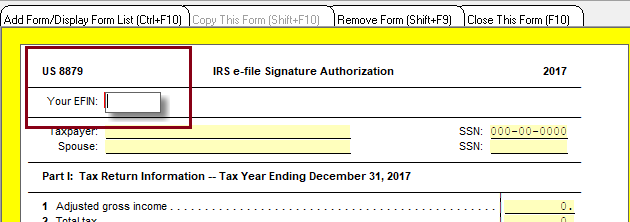
Step 9: Add EFIN
Enter your EFIN in the designated field.
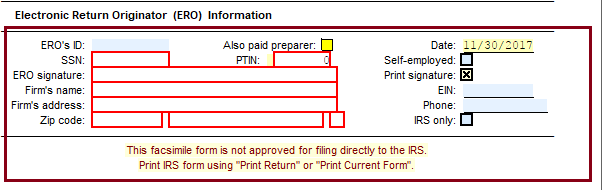
Step 10: Add ERO Information
Fill in the ERO information at the bottom of the screen to save time on future returns.
📞 Still Need Help?
If you are having trouble, contact our support team:
Phone: 1-800-516-9442
Tags: install,setup,getting-started