 Support Center
<- Back to Main Page
Tags: install,setup
Backing up your data
📚 What This Guide Covers
This comprehensive guide covers the essential process of backing up your SureFire tax data. Regular backups are critical for data security and for transferring client files between systems.
✅ Why Backup?
You can use the built-in backup functions to:
- Securely copy tax returns to removable disks or external drives.
- Transfer files to a new computer.
- Move transmittal files for e-filing from a different workstation.
Recommendation: Back up your data daily and maintain a log of when each backup was performed and by whom.
📊 Step-by-Step Guide
Step 1: Open Backup Utility
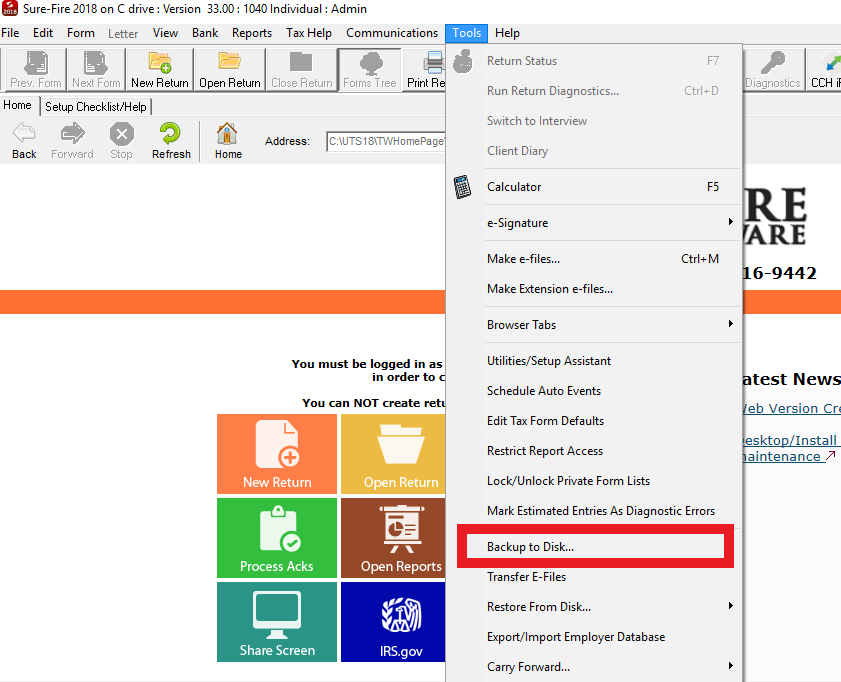
On the Tools menu, select Backup to Disk.
Step 2: Choose Backup Type
In the Backup Options window, choose one of the following:
- Regular Backup: Backs up your return files only.
- Archive Backup: Backs up returns, preparer information, and user settings.
- IRS/RAL Transfer: For moving files to a transmitting PC.
Select Start a new backup or Add to a previous backup and click OK.
Step 3: Define Location & Select Data
To Create a New Backup:
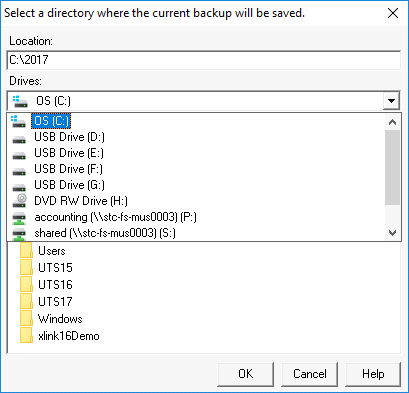
- Select the Drive and Directory where you want the backup stored.
- Click OK to begin the process.
⚠️ Note: If using a removable drive, ensure it is connected before starting.
To Add to a Previous Backup:
- Select the User and the specific Returns to back up.
- Select the Drive and Directory where the existing backup file is located.
- Click OK. The software will merge the new data into the existing backup file.
📞 Still Need Help?
If you need help establishing a complete hardware backup strategy, contact our support team:
Phone: 1-800-516-9442
Tags: install,setup