 Support Center
Unlock a Locked Users Account in Desktop
📚 What This Guide Covers
This guide explains how the ADMIN user can unlock a user account that has been locked due to multiple incorrect password attempts.
📊 Step-by-Step Guide
Step 1: Access Utilities
Only the ADMIN user has the permissions required to unlock other accounts.
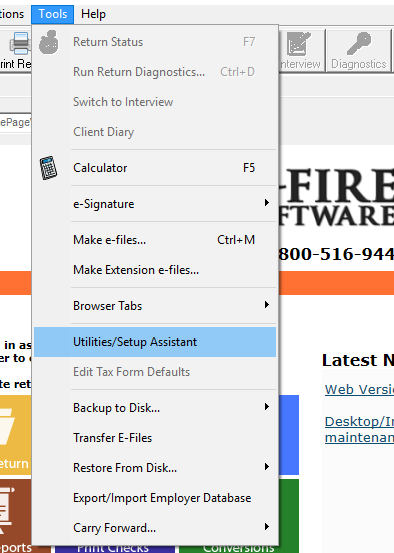
Sign in to SureFire as the ADMIN. Select TOOLS from the top menu and then select UTILITIES/SETUP ASSISTANT.
Step 2: Open Setup Assistant
The Setup Assistant is the management hub for users and software configuration.
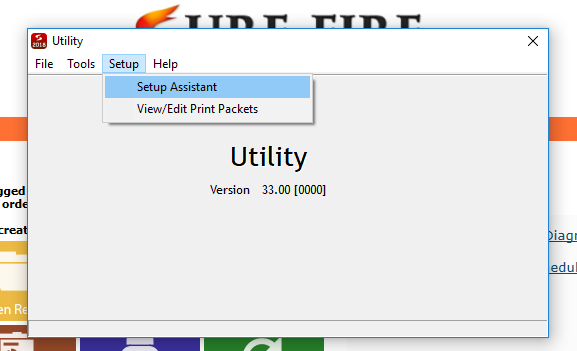
In the new window that appears, click the SETUP menu and then select SETUP ASSISTANT.
Step 3: Manage Users
Locate the specific user whose account is currently locked.
Select GROUPS & USERS from the left-hand navigation pane. In the user list, double-click the user you wish to edit to open their User Details window.
Step 4: Unlock Account
Uncheck the lock status and save your changes.
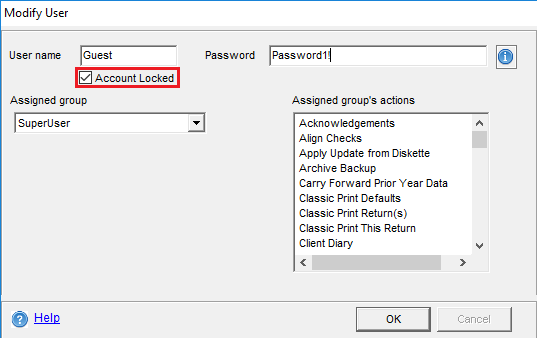
In the top-left corner of the User Details window, find the ACCOUNT LOCKED checkbox and uncheck it. Verify or update the password if necessary, then click OK. Finally, ensure you click SAVE & CLOSE as you exit the Setup Assistant.
📞 Still Need Help?
If the account remains locked or the ADMIN password is forgotten, contact our support team:
Phone: 1-800-516-9442
Tags: install,setup