 Support Center
E-Filing for Desktop
📚 What This Guide Covers
This guide explains the complete process of e-filing a tax return in SureFire Desktop, from initial diagnostics to final transmission to the IRS or state authorities.
📊 Step-by-Step Guide
Step 1: Run Diagnostics
Diagnostics scan the return for errors or missing information.
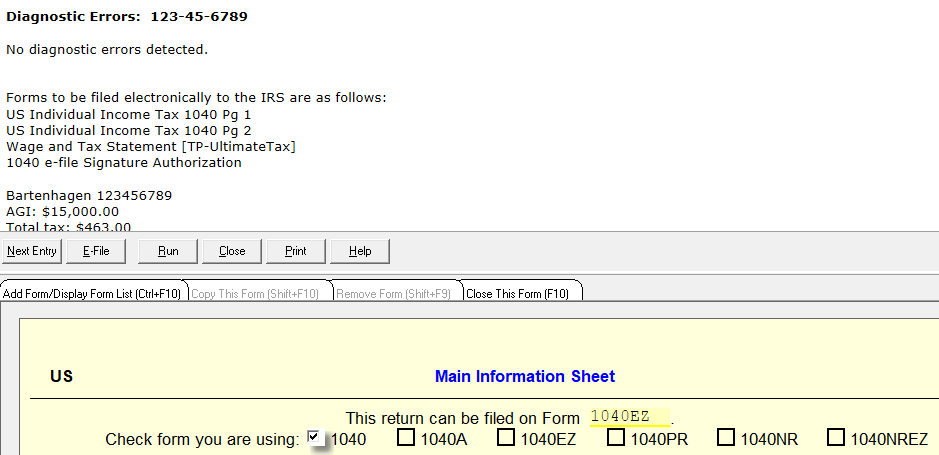
Before you can e-file, you must run diagnostics. This feature scans the return and ensures there are no outstanding issues or blatantly missing data. It provides a baseline by displaying errors that must be fixed and warnings for potential issues.
Step 2: Create the E-file
Prepare the electronic data for transmission.
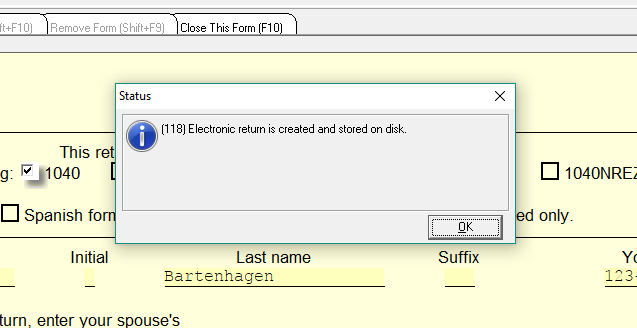
Once diagnostics state "No Diagnostic errors detected," the E-file button at the bottom of the window will become active. Click it and choose whether to file Federal, State, or both. You will receive a confirmation message: "Electronic return is created and stored on disk."
Step 3: Transmit the Return
Send the prepared data to the IRS or State.
Creating an e-file does not automatically send it. To transmit:
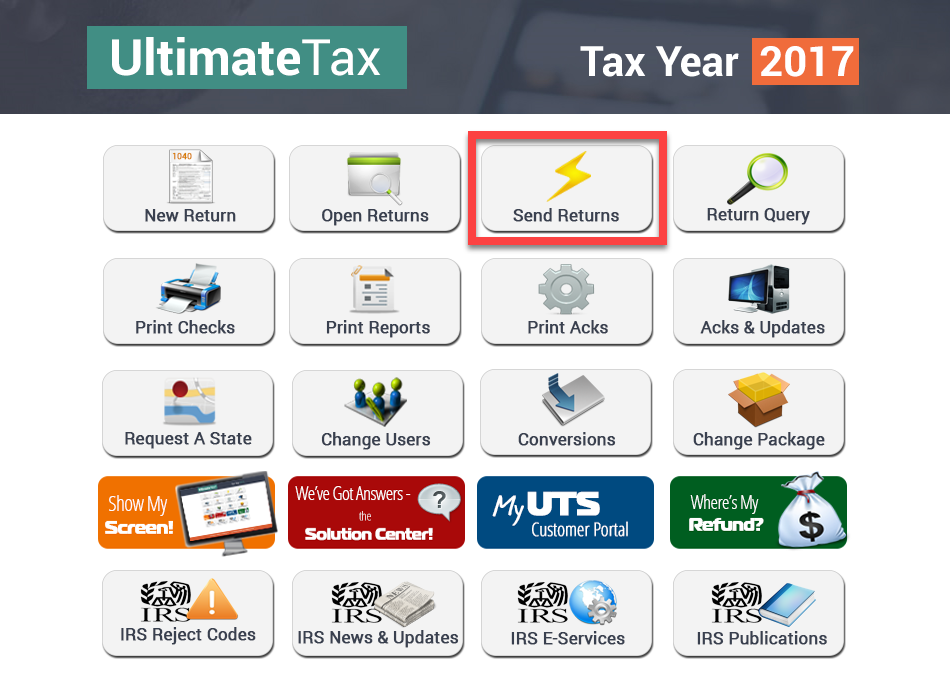
- Close the return and go to the dashboard.
- Select the Send Returns button.
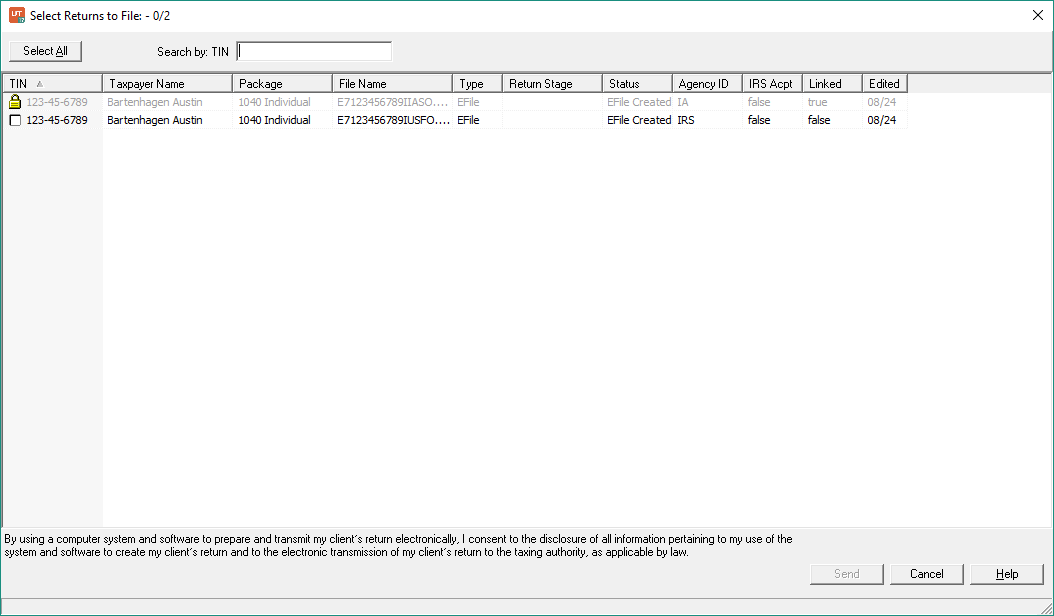
- Check the boxes for the returns you wish to send.
- Click the Send button.
✅ Submission Report
After transmission, a Submission Report will display what was sent. You can save or print this report for your records.
⚠️ Locked State Returns?
If you see a lock on a state return, please refer to the article on Locked State E-files.
📞 Still Need Help?
If you encounter errors during transmission, contact our support team:
Phone: 1-800-516-9442
Tags: install