 Support Center
Listing Vehicle Expenses
📚 What This Guide Covers
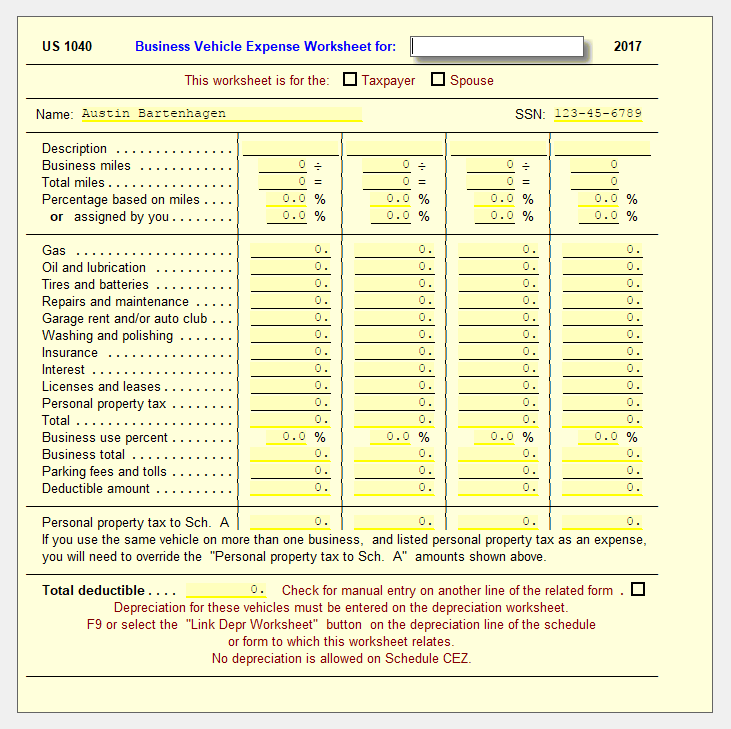
This guide explains how to use the Business Vehicle Worksheet in SureFire to calculate deductible expenses for business vehicles. This worksheet allows you to:
- Calculate gas and other operating expenses for up to four vehicles.
- Determine the deductible amount based on business use percentage.
- Handle parking fees, tolls, and vehicle depreciation.
📊 Step-by-Step Guide
Step 1: Open the Worksheet
The worksheet is the primary tool for vehicle expense calculation.
Navigate to and open the Vehicle Wkt form. Enter the name of the individual or business at the top of the form.
Step 2: Enter Vehicle Details
Provide details for each vehicle being claimed.
For each vehicle, enter the following:
- Description of the vehicle.
- Business miles driven.
- Total miles driven.
💡 Pro Tip
SureFire automatically calculates the percent of business use. If you already know the percentage, you can skip the mileage entries and enter it directly on the Business use percent line.
Step 3: Enter Expenses
List the actual costs associated with the vehicle.
Enter your expenses for each vehicle. Note that:
- The worksheet totals the expenses and calculates the deductible amount based on the percent of business use.
- Parking fees and tolls are added at 100% (not subject to the business use percentage).
Step 4: Handle Depreciation
Depreciation is handled separately from operational expenses.
To enter depreciation for these vehicles, link from Form 4562 to a Depreciation Worksheet. You must use a separate worksheet for each vehicle.
⚠️ More Than Four Vehicles?
If you have more than four vehicles to list, you can duplicate the form by pressing Shift+F10.
📞 Still Need Help?
If you have complex vehicle expense scenarios, contact our support team:
Phone: 1-800-516-9442
Tags: install,federal,form