 Support Center
Delete, Move, Copy, or Rename a Return
📚 What This Guide Covers
This guide provides instructions on how to manage your tax returns within SureFire, specifically how to:
- Delete - Remove unwanted returns from the system.
- Move/Copy - Transfer returns between users or packages.
- Rename - Update the return name for better organization.
⚠️ Before You Begin
To see or manage returns for a specific user, you must be logged in as that user or as the ADMIN.
📊 Step-by-Step Guide
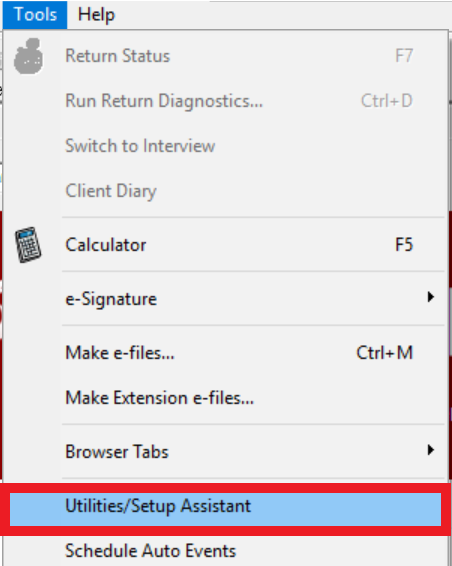
Step 1: Open Utility/Setup
Access the administrative tools of the software.
Go to the Tools menu and select Utility/Setup.
Step 2: Open Return Explorer
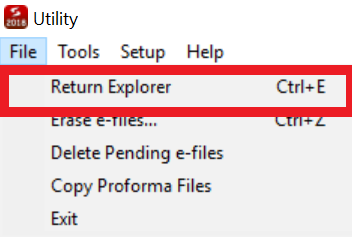
The Return Explorer is the central hub for managing return files.
Once in Utility/Setup, go to File and select Return Explorer.
Step 3: Select Returns
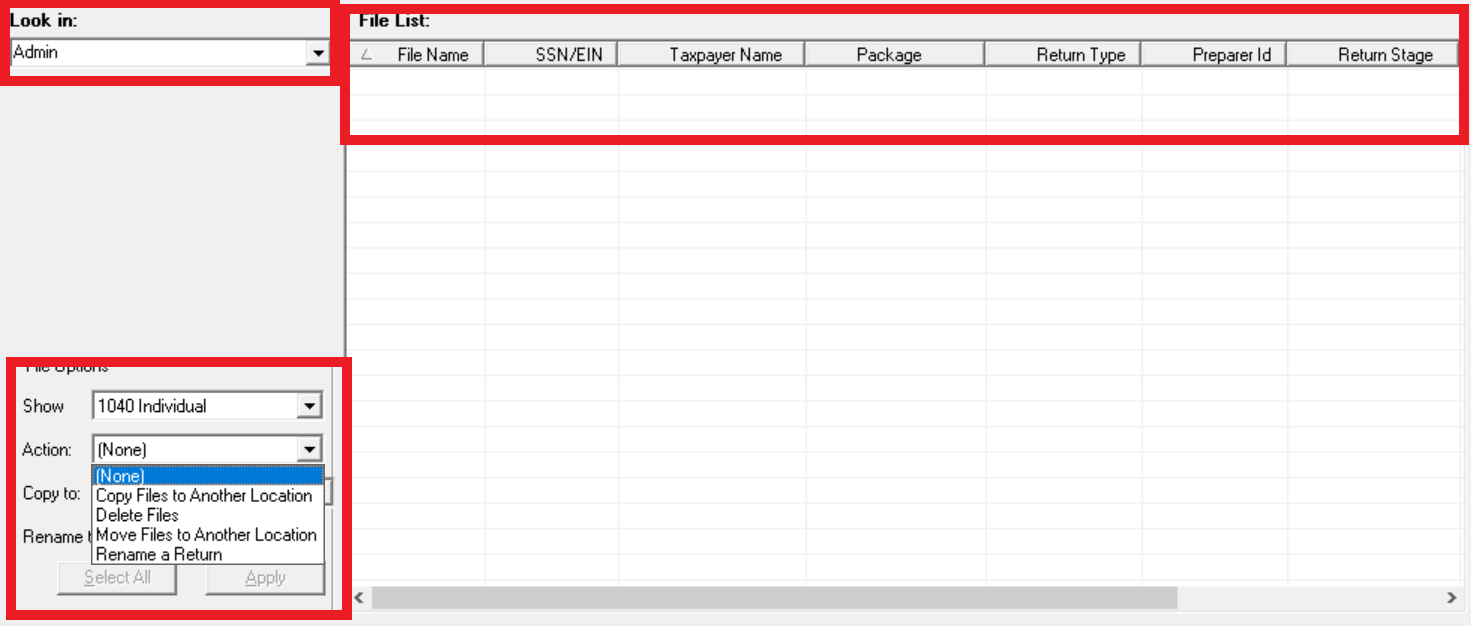
Choose the returns you want to modify.
In the Return Explorer window, you can change the package on the bottom left corner where it says [Show]. Then, select the returns you want to use on the right-hand side.
💡 Pro Tip
Standard Windows multi-select (Shift+Click or Ctrl+Click) is enabled in this window for selecting multiple returns at once.
Step 4: Perform Action
Select the final action to be performed on the selected returns.
On the bottom left of the window, select the action you wish to perform (Delete, Move, Copy, or Rename).
📞 Still Need Help?
If you are having trouble, contact our support team:
Phone: 1-800-516-9442
Tags: install,setup