 Support Center
Create Default Tax Preparer Information
📚 What This Guide Covers
This guide shows you how to create and manage default tax preparer information in the SureFire software.
- Access - Navigating to the Setup Assistant
- Configuration - Adding or editing preparer and ERO details
- Implementation - Using the Preparer ID within a tax return
⚠️ Before You Begin
- You must be logged in as ADMIN to access these utility options.
- Decide on a unique Preparer ID for each staff member.
📊 Step-by-Step Guide
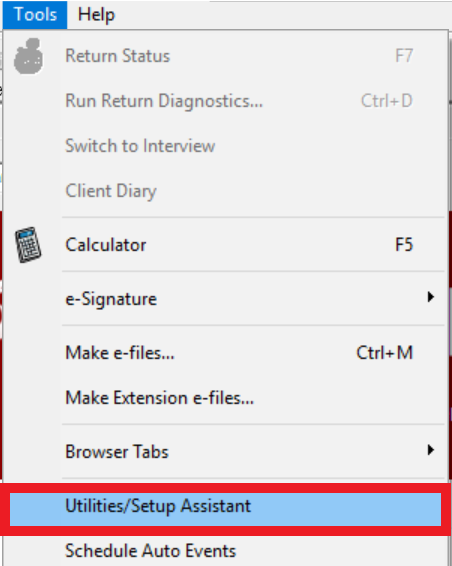
Step 1: Open Utility Options
Go to Tools > Utility/Setup options.
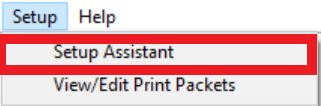
Step 2: Access Setup Assistant
Click on Setup > Setup Assistant.
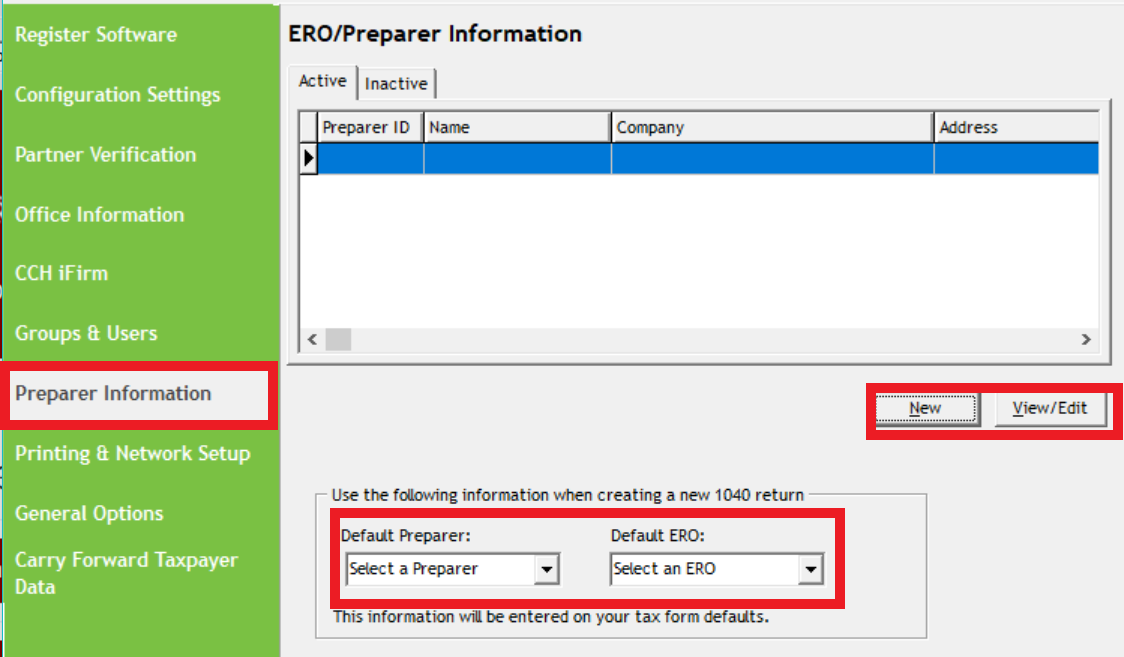
Step 3: Enter Preparer Information
Select Preparer Information. From here, you can create new preparer records or edit existing ones. You can also set default Preparer and ERO information for all new returns.
📝 Note: The Preparer ID you assign here is the code the preparer will enter on the Main Information sheet of a return to auto-load their data.
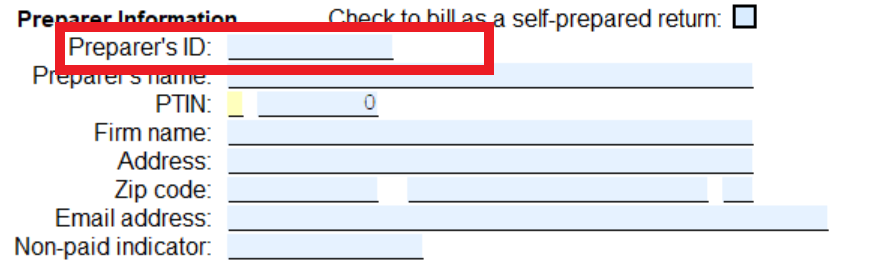
Step 4: Load Defaults in a Return
Inside a tax return, navigate to the bottom of the Main Information Sheet. Enter the Preparer ID and press ENTER or TAB to automatically fill in the saved default information.
📞 Still Need Help?
If you are having trouble, contact our support team:
Phone: 1-800-516-9442
Tags: install,setup