 Support Center
<- Back to Main Page



Tags: install
How to fix TW has stopped working error
📚 What This Guide Covers
This guide provides instructions for performing a "rename reinstall" to fix the "TW has stopped working" error in the TaxWise software.
- Preparation - Renaming the existing UTS folder
- Uninstallation - Removing the software via Control Panel
- Restoration - Renaming the folder back and running the tech setup
📊 Step-by-Step Guide
Step 1: Locate UTS Folder
Go to your (C:) drive and find the UTS folder for the tax year experiencing the issue.
Step 2: Rename UTS Folder
Rename the folder by adding "OLD" to the end (e.g., rename UTS24 to UTS24OLD).
Step 3: Uninstall Software
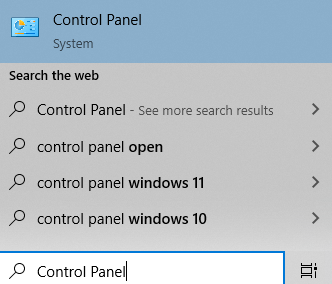
Open Control Panel, go to Programs and Features, and uninstall the TaxWise software for the problematic year.
Step 4: Restore Folder Name
Go back to your (C:) drive and rename the "OLD" folder back to its original name (e.g., UTS24).
Step 5: Run Tech Setup
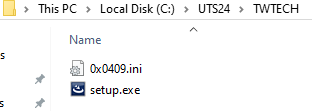
Open the UTS folder, navigate to the TWTECH subfolder, and run setup.exe. Follow the prompts to ensure the software is up to date.
📞 Still Need Help?
If you are having trouble, contact our support team:
Phone: 1-800-516-9442
Tags: install