 Support Center
Saving Returns as PDF's
📚 What This Guide Covers
This guide provides a step-by-step process for saving tax returns as PDF files in the web-based SureFire software.
- Selection - How to choose and prepare a return for printing
- Generation - Waiting for the software to create the PDF document
- Saving - Downloading and storing the PDF on your computer
📊 Step-by-Step Guide
Step 1: Access Tax Returns
Log in to your web-based software and navigate to the Tax Returns section.

Step 2: Start Printing Process
Click on the Print Returns button.
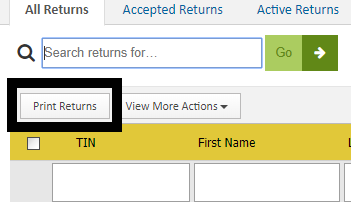
Step 3: Select a Return
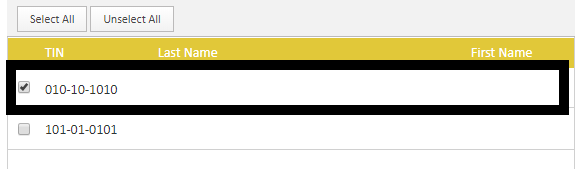
A list of returns will appear. Select the specific return you wish to save as a PDF.
⚠️ Important: You can only create one PDF at a time. Attempting to select and print multiple returns simultaneously will not work correctly.
Step 4: Submit for Printing
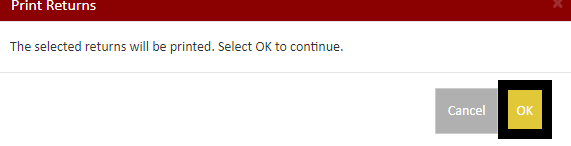
Click Submit in the bottom right of the selection screen. A confirmation message will appear stating the return is ready.

Step 5: Generate PDF
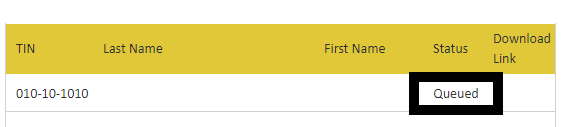
Wait while the system generates the PDF. It will show as "Queued" for a few seconds.
Step 6: Get Document
Keep the screen open until the status changes to Get Document, then click that link.

Step 7: Check Pop-up Settings
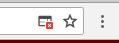
The document should open in a new tab. If it doesn't, ensure your browser is not blocking pop-ups for this site. Check for a red "X" icon in the address bar to allow pop-ups.
Step 8: Download and Save
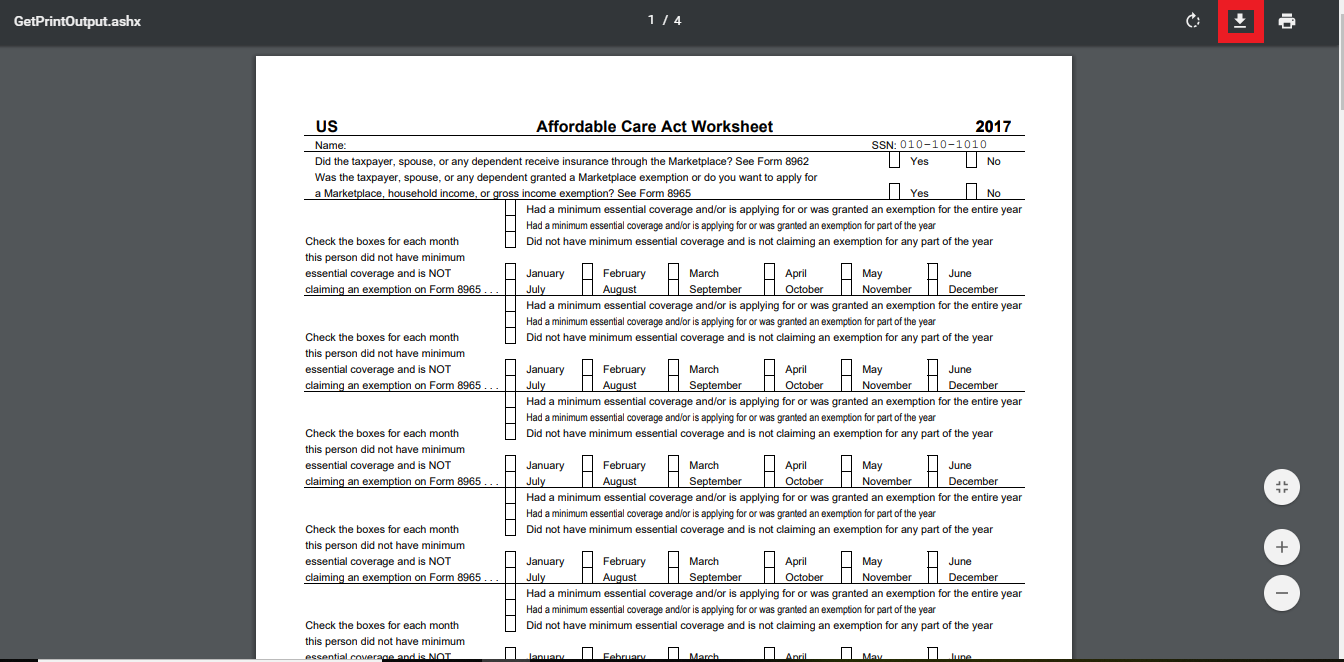
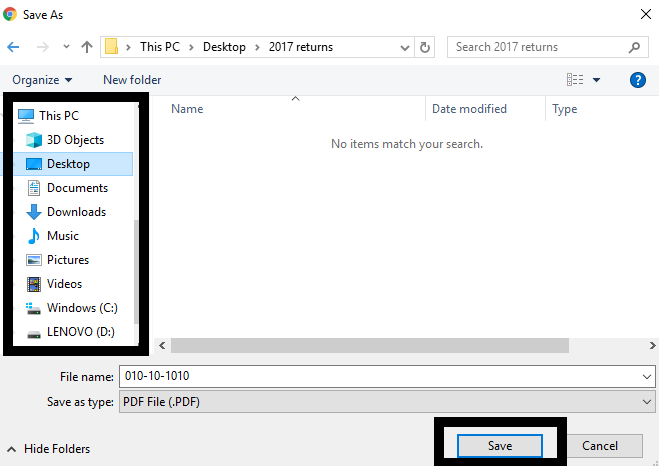
Once the return loads in the new tab, click the Download arrow to save the file to your computer.
📞 Still Need Help?
If you are having trouble, contact our support team:
Phone: 1-800-516-9442
Tags: web