 Support Center
<- Back to Main Page
Tags: install,setup
Demo conversion for demo
📚 What This Guide Covers
This guide provides a walk-through for setting up a demo conversion in the SureFire software using the 2017 Demo.
- Downloads - Software and conversion tool links
- Conversion - Adding and converting prior year data
- Access - Logging in to view converted data
📊 Step-by-Step Guide
Step 1: Download Software Demo
Download the 2017 SureFire Demo here: Sure-Fire 2017 Demo.
Step 2: Download Conversion Tool
Select the appropriate conversion software from the table below:
| Software | Download Link |
|---|---|
| ATX | Download File |
| Crosslink | Download File |
| Drake | Download File |
| Lacerte | Download File |
| ProSeries | Download File |
| ProSystem fx | Download File |
| TaxAct | Download File |
| TaxSlayer | Download File |
| UltraTax | Download File |
Step 3: Run Setup and Add Files
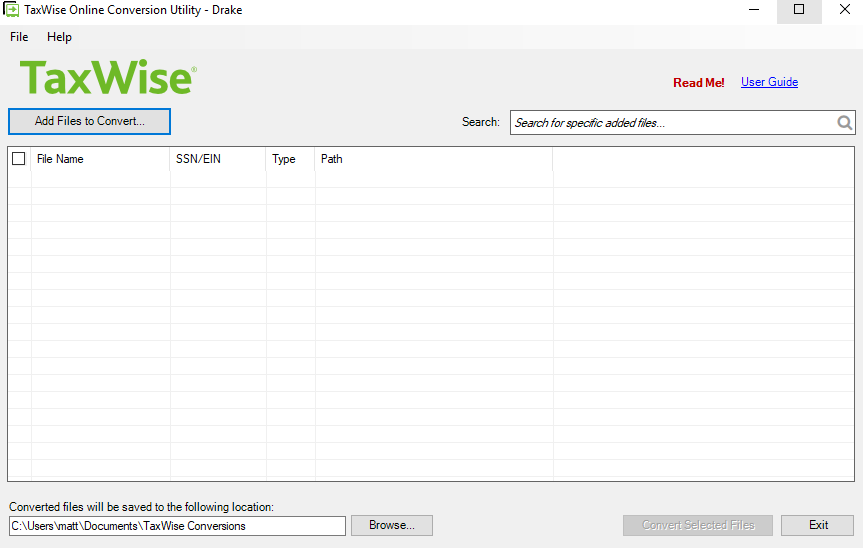
Run the conversion tool, then click Add Files To Convert in the top right.
Step 4: Select Data Folder
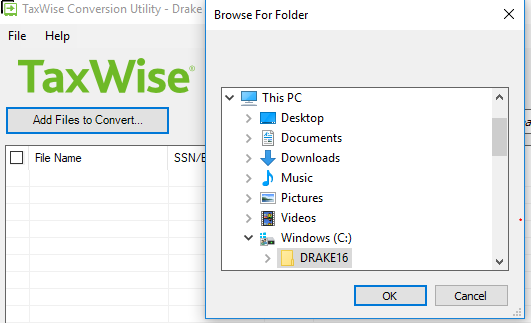
If the conversion file is for the proper year, the folder will be auto-picked. Click OK.
Step 5: Convert Returns
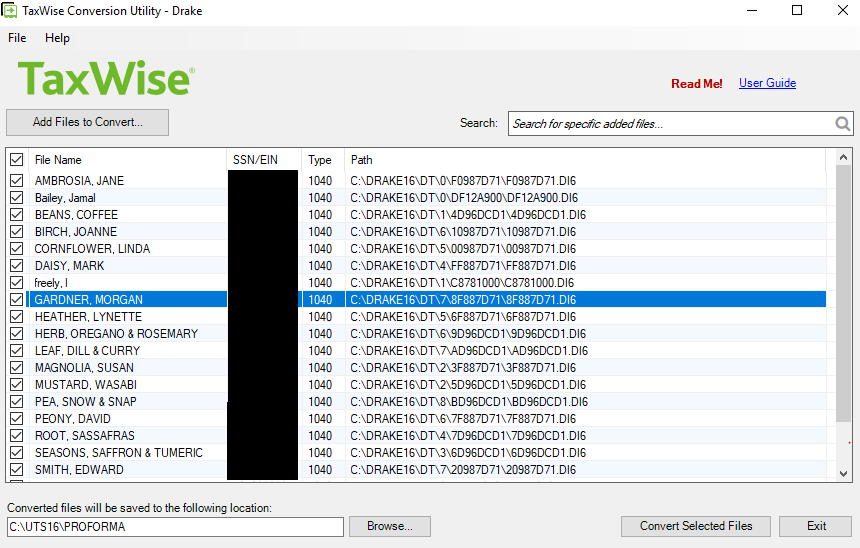
Prior year returns will load and be selected. Click convert selected files.
Step 6: Monitor Conversion Progress
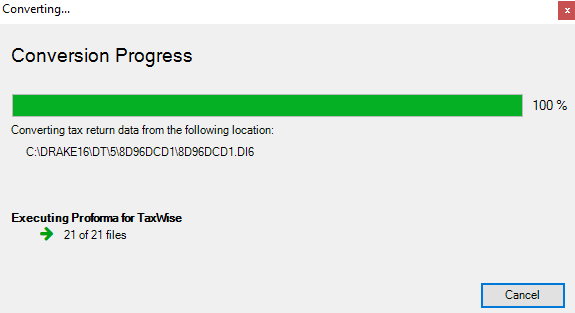
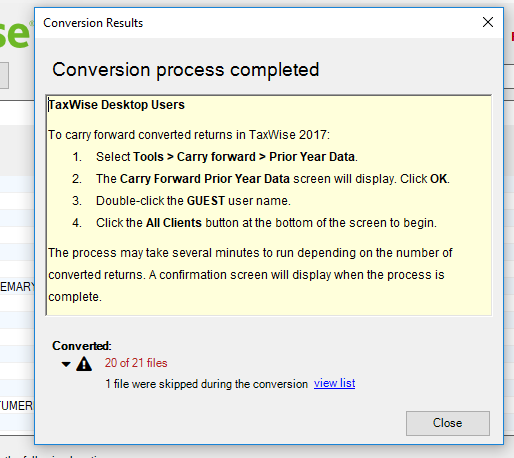
Wait for the conversion process to complete.
Step 7: Close Tool
Click close when finished.
Step 8: View Returns
Open your software and log in as ADMIN with password Demo123! to see the converted returns.
📞 Still Need Help?
If you are having trouble, contact our support team:
Phone: 1-800-516-9442
Tags: install,setup