 Support Center
Create New User / Preparer
🔍 Create New User / Preparer
This guide shows you how to create a new username for a preparer in your Surefire Tax Software admin account.
⚠️ Before You Begin
You will need:
- An admin username to log into the website
- Access to the Administrator settings area
📊 Step-by-Step Guide
-
Step 1: Log in with your admin username
Use this when you need to access the Administrator area.
First log into your admin username
-
Step 2: Open Administrator Settings
Use this when you need to reach the user management screen.
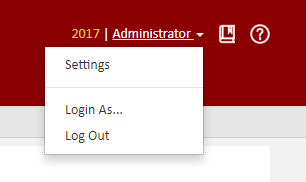
After you are logged into the admin, you will need to go to the top-right of the website and click where it says ADMINISTRATOR click on that then go to SETTINGS
-
Step 3: Create the new username
Use this when you need to add a new user account.
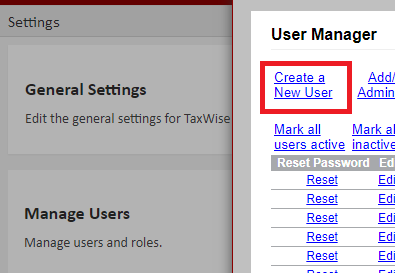
Click on Manager Users and now you will create a new username
-
Step 4: Assign the correct User Role(s)
Use this when you need to ensure the user has the right permissions and can log in.
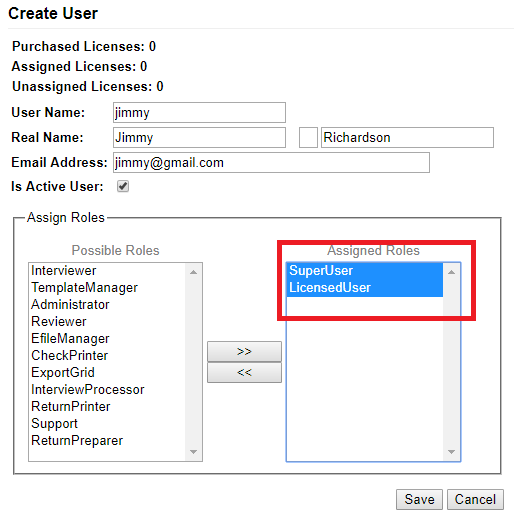
When you type a new username, you will need to also see the User Role(s) box on the right.
You will need to add the two roles of "SuperUser" AND you must set them as a LICENSED USER status.
Quick Information About Roles
Administrator - do NOT set this to a preparer or even your username because you may lose access to some features as a preparer
SuperUser - This allows this username to Create Returns, Create and Send E-Files
ReturnPreparer - Can Only Create Returns
Interviewer - Can Only user Interview Mode
CheckPrinter - This allows this username to have ability to print checks
LicensedUser - You only have so many "Licenses" to add to users so they can actually log in to the system. If you ever get an error message saying "You are not an authorized user" this means they were NOT set as a "Licensed User"
As of 2016 Tax Year, you can use the "Admin" username to preparer returns if you wish to do so for ONLY tax years 2016 and newer. We still highly recommend just creating a separate username to create returns under for security purposes.
-
Step 5: Confirm the temporary password email
Use this when you need to know what happens after the account is created.
Once you create the username, the user will get an email sent to them with their new temporary password.
📞 Still Need Help?
If you are having trouble, contact our support team:
Phone: 1-800-516-9442
Tags: web,setup,getting-started