 Support Center
How to fix Pending Acknowledgement Error
⚠️ How to Fix Pending Acknowledgement Error
Is your return stuck on "E-File Created" or "Sent to EFC"? When you try to re-create the e-file, does it say the return has already been e-filed? Don't worry - this guide will help you resolve this common issue and get your return submitted successfully!
📋 What This Guide Covers
- How to verify if a return was actually sent
- How to find and clean up the TRANSMIT folder
- How to safely delete stuck e-file records
- How to re-create and resend your return
🚨 Important: Verify First!
Before deleting any files, you MUST verify the return hasn't already been accepted or is awaiting acknowledgment. Deleting files for an already-accepted return can cause duplicate filing issues!
Step 1: Verify the Return Status Using Return Query
First, check if the return has actually been sent and is awaiting acknowledgment:
- Go to Return Query (also called EFC Return Lookup)
- Search for the return using the taxpayer's SSN
- Check if the return shows as Accepted or Pending/Awaiting Acknowledgment
💡 Tip: Not sure how to use Return Query? Search our knowledgebase for "Return Query" for detailed instructions.
✅ If the return is NOT accepted and NOT awaiting acknowledgment → Continue to Step 2
⏳ If the return IS awaiting acknowledgment → Wait for the IRS/State response
✔️ If the return IS already accepted → No action needed, the return went through!
Step 2: Locate the Software Installation Folder
Now we need to find the TRANSMIT folder where e-file records are stored:
- Find the Sure-Fire Tax Software icon on your desktop for the tax year you're having issues with
- Right-click on the icon
- Select Properties
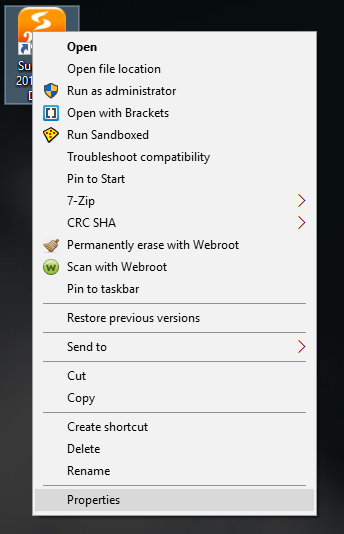
📁 Alternative Method: If you don't have the desktop icon, navigate directly to your C: drive and look for a folder named UTSXX where XX is the last 2 digits of the tax year. For example:
• C:UTS24 = Tax Year 2024
• C:UTS23 = Tax Year 2023
• C:UTS22 = Tax Year 2022
Step 3: Open the File Location
In the Properties window:
- Click the "Open File Location" button
- This will open Windows Explorer to the software installation folder
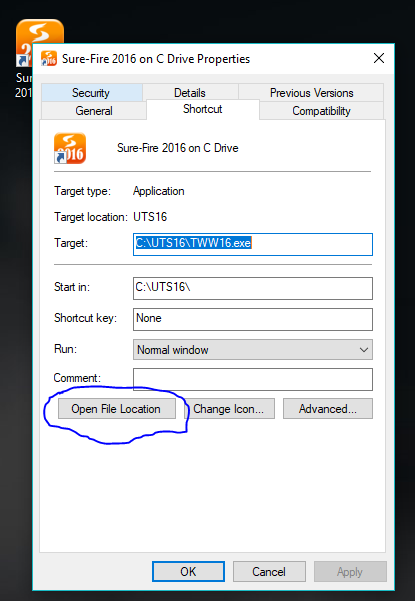
Step 4: Navigate to the TRANSMIT Folder
Inside the software folder:
- Look for a folder named TRANSMIT
- Double-click to open it
Step 5: Find and Delete the Stuck E-File Record
Inside the TRANSMIT folder, look for files that match this pattern:
Example:
EI111223333USEX.XML
📍 Understanding the File Names:
| Part | Meaning | Example |
|---|---|---|
EI |
E-file Indicator (always EI) | EI |
111223333 |
SSN (no dashes) | For SSN 111-22-3333 |
US |
Federal Return | US = IRS |
CA |
California State Return | CA = California |
NY |
New York State Return | NY = New York |
⚠️ Critical Warning: Only delete the file for the SPECIFIC return (Federal or State) that is stuck. For example:
• If only the State is stuck → Delete only the state file (e.g., EI111223333CAEX.XML)
• If only Federal is stuck → Delete only the federal file (e.g., EI111223333USEX.XML)
Why? If Federal was already accepted and you delete both files and resend, you'll get a reject on Federal for duplicate filing!
Step 6: Re-Create and Send the E-File
After deleting the stuck file:
- Go back to the tax software
- Open the return
- Go to E-File → Create E-File
- The e-file should now create successfully
- Send the return as normal
✅ Success!
Your return should now be able to be recreated and sent successfully. Check the Return Query again in 24-48 hours to confirm the acknowledgment was received.
📝 Quick Reference: Common State Codes
Here are some common state codes you might see in TRANSMIT file names:
🔧 Troubleshooting
Can't find the TRANSMIT folder?
- Make sure you're in the correct tax year folder (UTSXX)
- The folder is case-sensitive on some systems - look for "TRANSMIT" or "Transmit"
Still getting the same error after deleting?
- Make sure you deleted the correct file (check the SSN and state code)
- Close and reopen the tax software after deleting
- Try running the software as Administrator
Return Query shows it was accepted but software says otherwise?
- The acknowledgment may not have synced properly - do NOT resend if Return Query shows Accepted
- Contact support for assistance with syncing the acknowledgment
🆘 Still Need Help?
If you're still experiencing issues after following these steps, our support team is here to help!
Tags: install