 Support Center
How to do a Rename Reinstall
🔧 What is a Rename Reinstall?
A Rename Reinstall is a troubleshooting procedure that can fix many software installation problems without losing your tax return data.
Use this when:
- The software will not open or crashes on startup
- You are getting strange errors
- The program is not working correctly after a Windows update
- Support has asked you to do a rename reinstall
⚠️ Before You Begin
Important: These steps must be done on the main/server computer where:
- All the tax return data is stored
- The software was originally installed
Understanding "XX" in these instructions:
When you see XX, replace it with the last 2 digits of the tax year:
- 2024 tax year = UTS24
- 2023 tax year = UTS23
- 2022 tax year = UTS22
💻 Step-by-Step Instructions
Step 1: Rename the Program Folder
- Open File Explorer (press Windows key + E)
- Navigate to your C: Drive
- Find the folder named UTSXX (example: UTS24 for 2024)
- Right-click on the folder and select Rename
- Add OLD to the end (example: UTS24 becomes UTS24OLD)
Step 2: Open Control Panel
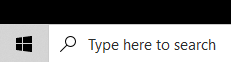
- Click the Windows Search bar (or press Windows key)
- Type "Control Panel" and press Enter
- Click on "Programs and Features" (or "Uninstall a program")

Step 3: Uninstall the Software
- Find "Sure-Fire [Year] on C Drive" in the list
- Click on it to select it
- Click Uninstall at the top
- Follow the prompts to complete the uninstall
Step 4: Rename the Folder Back
- Go back to your C: Drive
- Find the folder you renamed earlier (UTSXXOLD)
- Right-click and select Rename
- Remove OLD from the name (change it back to UTSXX)
Example: UTS24OLD becomes UTS24
Step 5: Run the Setup File
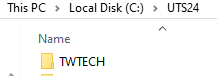
- Double-click to open the UTSXX folder
- Find and open the folder named TWTECH
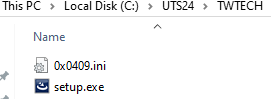
- Look for the file named setup.exe (or just "setup")
- Double-click setup.exe to run it
Step 6: Complete the Installation
- Follow the on-screen prompts
- If asked for a Workstation Number, see the box below
- Complete the installation wizard
💻 Workstation Number Guide
Single Computer: Use any number between 101 and 998 (example: 101)
Network/Multiple Computers: Each computer needs a unique number. Make sure you do not use the same number as another workstation on your network.
Tip: If you are unsure, use a random number like 333 or 555.
Step 7: Restart Your Computer
After the installation completes, restart your computer before opening the software.
⚠️ Troubleshooting
Cannot find the UTSXX folder
The folder may be on a different drive. Check your D: drive or other drives. You can also search for "UTS" in File Explorer.
Cannot find setup.exe in TWTECH folder
If the TWTECH folder or setup.exe is missing, you may need to download a fresh copy of the installation files. Contact support for assistance.
Software still not working after reinstall
Try restarting your computer one more time. If the issue persists, contact support for further assistance.
📞 Still Need Help?
If you are having trouble with the rename reinstall, contact our support team:
Phone: 1-800-516-9442
Tags: install,setup