 Support Center
Fix Windows 11 Missing Icons for Network Install
🔍 Fix Windows 11 Missing Icons for Network Install
If you have a Paper Icon like this:
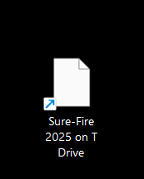
The way you fix this is by doing the following:
⚠️ Before You Begin
Make sure you can access the networked drive where the install files are stored (for example, the T drive).
📊 Step-by-Step Guide
-
Step 1: Create the Icons folder
Create a folder called "Icons" in the C:\ drive on the computer with broken Paper icon.
-
Step 2: Find the UTSXX folder on the networked drive
Next go inside the networked drive (Shown image would be on "T" drive) and then look for the UTSXX folder (XX being the year).
-
Step 3: Copy the app.icon file
Look for the app.icon file looks like this:
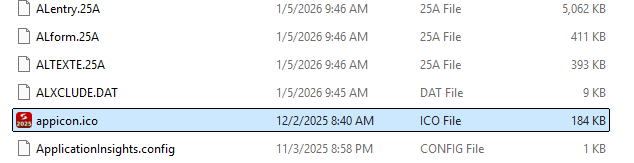
You will copy this file into the "C:\Icons" folder then rename it to the year you are doing, for this example its 2025.
-
Step 4: Change the desktop icon to the correct file
Next you will right click on the Paper icon on your desktop goto > Properties then click on Change Icon then point it to the icon location.
You can browser or manually put in the box "C:\Icons\2025.ico" then hit OK and then hit APPLY and ACCEPT and you will now see a working icon on your desktop.
📞 Still Need Help?
If you are having trouble, contact our support team:
Phone: 1-800-516-9442
Tags: install,setup,getting-started