 Support Center
Uninstall / Reinstall Federal or State Modules
🔧 Uninstall / Reinstall Federal or State Modules
Need to fix a corrupted module or reinstall a state/federal package? This guide will walk you through how to properly uninstall and reinstall modules in Sure-Fire Tax Software. Whether you're troubleshooting errors or need a fresh install, we've got you covered!
📋 What This Guide Covers
- Part 1: How to uninstall a module (Federal, State, or Bank)
- Part 2: How to reinstall a module
- Part 3: How to do a "Full Clean" reinstall (when normal reinstall doesn't work)
💡 When Would I Need This?
- A state or federal module is showing errors or acting strange
- You're getting calculation errors on specific forms
- A module update didn't install correctly
- You need to start fresh with a clean module installation
- Bank product software needs to be reinstalled
📦 Part 1: How to Uninstall a Module
Step 1: Open the Utility Window
- Open Sure-Fire Tax Software
- Go to Tools at the top menu bar
- Select Utilities/Setup Assistant
Step 2: Access Uninstall Modules
- In the Utility window, click Tools
- Select Uninstall Modules
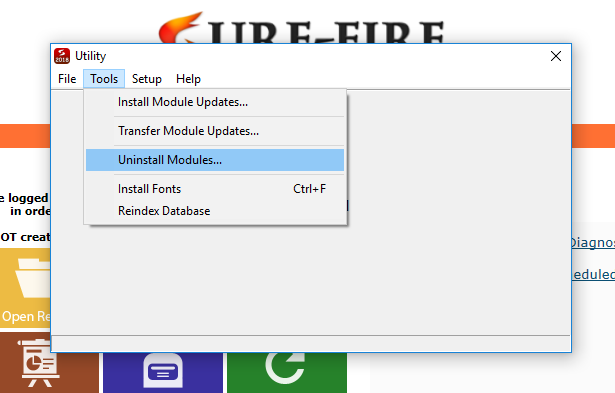
Step 3: Select and Uninstall
- A window will appear listing all installed modules:
- Federal modules
- State modules
- Bank products
- Select the package(s) you wish to uninstall by clicking on them
- Click OK or press Enter
- Wait for the confirmation message that the process is complete
✅ Done! The module has been uninstalled from your system.
📥 Part 2: How to Reinstall a Module
After uninstalling a module, reinstalling it is simple:
- Close the Utility window if it's still open
- Go back to the main Sure-Fire Tax Software
- Go to Communications in the top menu
- Select Get Module Updates
- Wait for the download and installation to complete
✅ Done! The Federal module, state, and/or bank software will now be available when you restart the program.
🧹 Part 3: Full Clean Reinstall (Advanced)
⚠️ Use this method only if the normal reinstall (Part 2) doesn't fix your issue. This completely removes all cached module files.
Step 1: Uninstall the Module First
Follow the steps in Part 1 above to uninstall the module normally:
Tools → Utilities/Setup Assistant → Tools → Uninstall Modules
Step 2: Navigate to the MAILBOX Folder
- Open File Explorer (Windows key + E)
- Navigate to your Sure-Fire installation folder:
C:\UTSXX\MAILBOX
Where XX = last 2 digits of the tax year
📁 Example Paths:
• C:\UTS25\MAILBOX = Tax Year 2025
• C:\UTS24\MAILBOX = Tax Year 2024
• C:\UTS23\MAILBOX = Tax Year 2023
Step 3: Delete STU Files
- Inside the MAILBOX folder, scroll to the bottom (files are in alphabetical order)
- Look for any files that start with STU
- Delete all files beginning with "STU"
🔍 What STU files look like:
• STUIUS01.ZIP, STUIUS02.ZIP (Federal - US)
• STUICA01.ZIP (California)
• STUINY01.ZIP (New York)
• STUITX01.ZIP (Texas)
• etc.
Step 4: Reinstall the Module
- Go back to Sure-Fire Tax Software
- Go to Communications → Get Module Updates
- Wait for the fresh download and installation
✅ Done! You now have a completely fresh installation of the module with no cached data.
📝 Quick Reference
| Action | Menu Path |
|---|---|
| Open Utility | Tools → Utilities/Setup Assistant |
| Uninstall Module | Tools → Uninstall Modules (in Utility) |
| Reinstall Module | Communications → Get Module Updates |
| MAILBOX Folder | C:UTSXXMAILBOX |
🔧 Troubleshooting
Module still not working after reinstall?
- Try the Full Clean Reinstall (Part 3)
- Make sure you deleted ALL files starting with "STU"
- Restart the computer and try again
Can't find the MAILBOX folder?
- Make sure you're looking in the correct tax year folder (UTSXX)
- The folder might be on a different drive if you installed elsewhere
- Try searching your computer for "MAILBOX"
Get Module Updates not downloading anything?
- Check your internet connection
- Try running the software as Administrator
- Temporarily disable firewall/antivirus and try again
📚 Related Articles
🆘 Still Need Help?
If you're still experiencing issues after following these steps, our support team is here to help!
Tags: install