 Support Center
<- Back to Main Page
Tags: install,setup
Deleting Returns
📚 What This Guide Covers
This guide provides a step-by-step walkthrough on how to permanently delete tax returns from the SureFire system using the Return Explorer tool.
📊 Step-by-Step Guide
Step 1: Open Return Explorer
- On the main software dashboard, navigate to the Tools menu.
- Select Utilities/Setup Assistant.
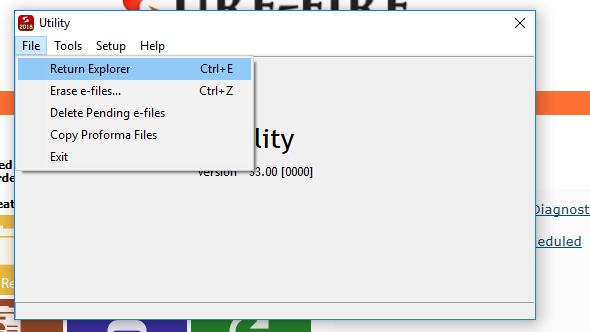
- In the Utility window, go to the File menu and click on Return Explorer.
Step 2: Locate and Select Returns
Admin users can browse returns across all user accounts.
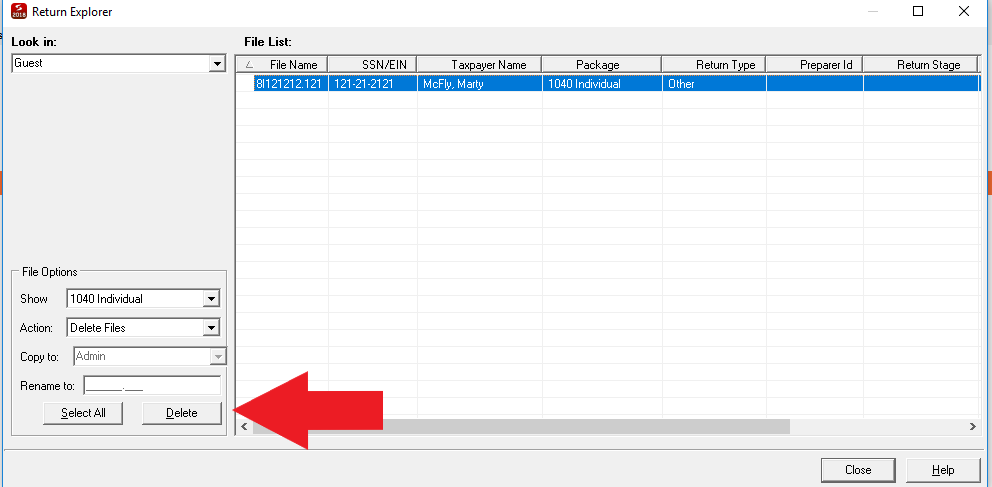
- Look In: If signed in as ADMIN, use this option to select a specific user's folder. Regular users are restricted to their own returns.
- Selection: On the right-hand side of the screen, click the return(s) you wish to delete. Selected returns will be highlighted in blue.
Step 3: Perform Deletion
- In the lower-left corner of the window, click the Action button.
- Select Delete Files from the menu.
- Click the Delete button.
⚠️ Final Confirmation
A prompt will appear warning you that the selected returns are about to be deleted. Click Yes to confirm and permanently remove the files.
📞 Still Need Help?
If you deleted a return by mistake, please refer to our guide on Restoring Deleted Returns or contact support:
Phone: 1-800-516-9442
Tags: install,setup